
Add a "Back to Top" Button
Long-form content is great for SEO, but scrolling back to the navigation can be a chore. Improve your user experience with this lightweight, smooth-scrolling button that only appears when needed.
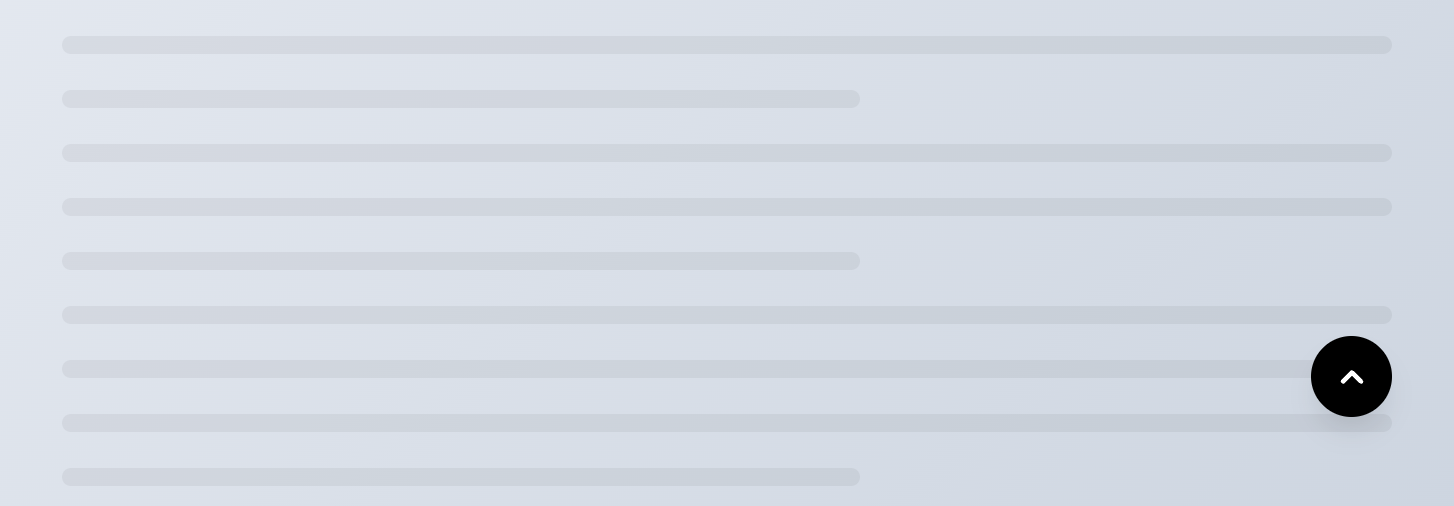
Step 1: The Functional Script
Add this to Settings > Advanced > Code Injection > Footer.
<!-- BACK TO TOP BUTTON -->
<a id="back-to-top" href="#">
  <svg width="24" height="24" viewBox="0 0 24 24" fill="none" stroke="currentColor" stroke-width="2" stroke-linecap="round" stroke-linejoin="round"><path d="m18 15-6-6-6 6"/></svg>
</a>

<script>
  window.addEventListener("scroll", function() {
    const btn = document.getElementById("back-to-top");
    if (window.pageYOffset > 400) {
      btn.classList.add("show");
    } else {
      btn.classList.remove("show");
    }
  });

  document.getElementById("back-to-top").addEventListener("click", function(e) {
    e.preventDefault();
    window.scrollTo({ top: 0, behavior: "smooth" });
  });
</script>
Step 2: The Styling
Add this to Website Tools > Custom CSS.
/* BACK TO TOP BUTTON STYLES */
#back-to-top {
  position: fixed;
  bottom: 30px;
  right: 30px;
  z-index: 999;
  background-color: #000000; /* Change color here */
  color: #ffffff;
  width: 50px;
  height: 50px;
  border-radius: 50%;
  display: flex;
  align-items: center;
  justify-content: center;
  text-decoration: none;
  opacity: 0;
  visibility: hidden;
  transition: all 0.3s ease;
  box-shadow: 0 4px 12px rgba(0,0,0,0.15);
}

#back-to-top.show {
  opacity: 1;
  visibility: visible;
}

#back-to-top:hover {
  transform: translateY(-5px);
  background-color: #333333;
}
Tips
Adjust the background-color in the CSS to match your brand.


